Test the OLT connection (SSH / SNMP / TRAP)
Goal: understand an OLT's connectivity indicators and what to do when they turn red.
In the OLTs list, each OLT shows three connectivity badges. They're the thermometer of the communication between Cpehub and the OLT.
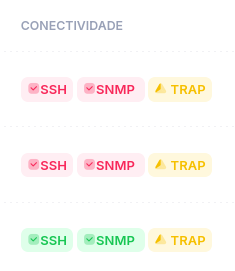
The three channels
| Badge | What it means | Used for |
|---|---|---|
| SSH (or Telnet) | Console access to the OLT | Running commands, provisioning, discovering ONUs |
| SNMP | Reading via SNMP | Reading status, signals, and inventory |
| TRAP | Receiving SNMP traps | Real-time events (down/up) |
- Green — channel working.
- Red — channel with a problem.
How to test manually
While editing the OLT, the Console Access and SNMP sections have a Test button that validates the channel on the spot — useful after changing the IP, password, or port.
What to do when it's red
| Red badge | Likely cause | Action |
|---|---|---|
| SSH and SNMP | Cpehub can't reach the OLT (network/VPN) | Check whether the VPN tunnel is online; check IP and firewall |
| SSH only | Console credentials/port changed | Update username/password/port and click Test |
| SNMP only | Wrong community or SNMP blocked | Check the read-only community and the firewall |
| TRAP only | SNMP Trap not configured on the OLT | Configure the trap pointing to Cpehub (manufacturer tutorial) |